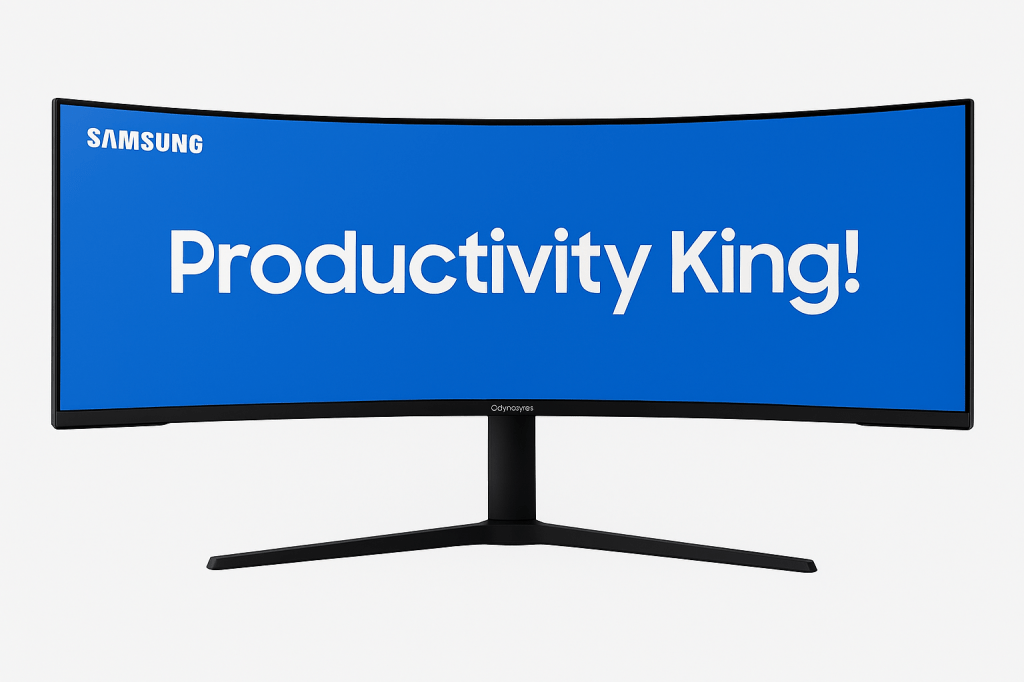
Happy New Year folks! As we kick off the new year, I wanted to dive into my all time favorite monitor for 2025. The 57’ inch Samsung Odyssey G9. Originally released in September of 2023 to the general public, this behemoth of a screen was packed with features that at the time, very few computers were able to run effectively. Two years on, it’s probably heading towards a refresh at some point but is it still worth the enormous price tag it commands? Let’s talk about it!
Pricing
This monitor retails at $2300, which is a hefty price for any display on the surface. If you consider the costs of buying a few mid ranged monitors or say dual Dell 32 inch Ultrasharp displays, then it’s really not that high. Still, as of this writing you can find this baby on sale for close $1499 brand new. That’s a hefty discount such an awesome display and really makes it more palatable, even if you really need a good monitor arm to go with it.
Build Quality
This monitor is exactly what you’d expect from the Odyssey line of products. Though mostly plastic housing, it’s really nice and I find it to be less flexible than other plastic backed monitors. The backlighting on the rear of the monitor is wonderful and adds a subtle glow to create some depth behind the display. It’s not very bright so if you want additional backlighting, considering investing in a light bar that includes it.
Unlike my previous experiences with Samsung’s Odyssey lineup, There’s no creaking or feeling of cheapness. It may be plastic, but it’s wonderful. Not everything needs to be aluminum to be great and Samsung really proved it with this baby.
Stand
I hope you have a big desk if you’re going to use the stand. The stand on this thing is massive and unlike the svelte stand that comes with the OLED Odyssey G9’s, this one has a single post with the worlds widest legs at 32 inches.
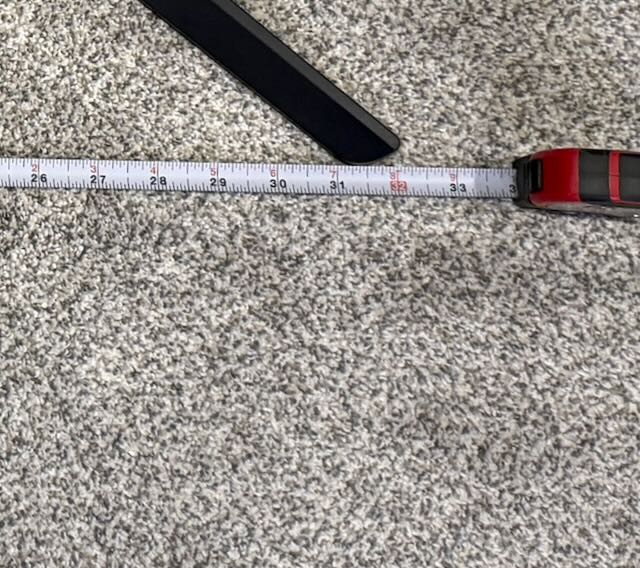
If you’re going to use this monitor on the included stand, be prepared to give up a significant amount of Desk real estate. I highly recommend ditching the included stand for a monitor arm to free up desk space. The feet are just too awkward on the desk. I set them on my Secret Lab Magnus Pro XL desk which is 26’ deep. The depth from the back of the stand to the end of the legs is about 17’ deep. That creates a very awkward placement on a shallow desk.
I went with the Ergotron VHD Monitor Arm and it was the best choice I’ve made. Ergotron is expensive and commands a high price, but I’ve had great luck with them relative to the cheap arms you find on Amazon. It retails at around $409 US dollars though you can find it on sale at Amazon from time to time. Another alternative to the Ergotron is the Secret Lab HD Arm. Again, it’s on the pricer side but its quality and if you’re spending twenty Benjamins on a monitor, then you need something sturdy that will last. I’ve seen others use the Secret Lab Arm but haven’t tested it myself. Secret Lab does call out 57’ inch monitors in their description so it should work. Make sure to do your research prior so you can choose the one that best fits your needs. If you’re using a Secret Lab MAGNUS Pro Desk, the Ergotron will also mount perfectly to the Secret Lab desk.
Ergotron: https://www.ergotron.com/en-us/products/product-details/45-693#?color=black&buynow=0
Secret Lab: https://secretlab.co/products/magnus-heavy-duty-monitor-arm?sku=MAG-MONARM1H-BLK
With monitors this size, it’s important you consider clearance behind the monitor. There’s almost 6’ of depth between the Ergotron arm and the rear of the display because it requires a massive mount to hold a display with such a large curve.
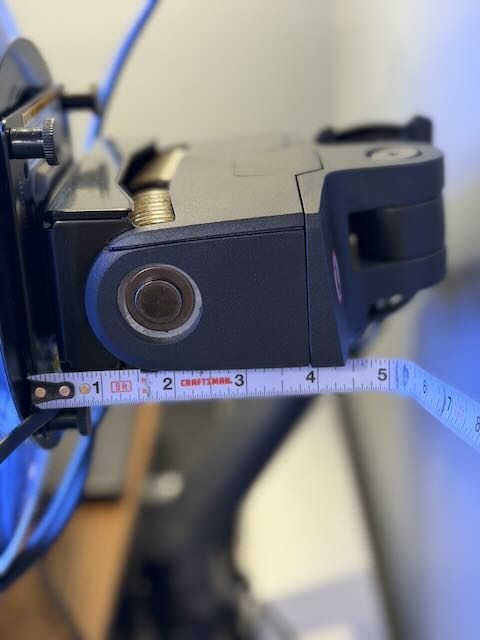
Measure appropriately so you aren’t left being too close to the display or if you’re on a sit/stand desk, scraping the wall when the desk or monitor moves.
Connectivity
From a connectivity perspective, most of the usual subjects are here. HDMI 2.1 and DisplayPort 1.4, and a USB Hub. The monitor does lack USB-C/Thunderbolt connectivity so if you’re planning a one cable solution, you’ll need a dock such as the CalDigit Thunderbolt 4/5 to your laptop.
I’ve not had any issues with connections or dropped connections to any of the PC’s I’ve connected to this monitor.
If you’ve got a Thunderbolt dock and you’re looking for cables to expand past the 4 footers provided, I’ve had really good luck with Cable Matters on Amazon. They are affordable, and give me more than enough for my productivity and light gaming uses. I would highly recommend that brand if you’re looking for affordable cables that provide extra length.
Display
Aside from this monitor being almost as long as my MAGNUS Pro XL Desk from Secret Lab, This 32:9 aspect ratio display is incredible in display details, brightness, resolution, and sharpness. It’s crazy plenty bright and thankfully this baby clocks in at around 420 cd/m2 nits of brightness with SDR content and up to 1000 nits for HDR. Its resolution comes in at 7680×2160 or two 32’ 4K UHD panels in a single display housing. This means it scales really well with macOS and provides enough brightness to sear my retinas and satiate my pickiness for monitors that don’t scale properly for Retina settings.
The VA panel with MiniLED technology is wonderful as well. Colors are great and bright. They aren’t as punchy as say an OLED display, but I don’t notice it. What I do notice however is the bloom around white text on black backgrounds or at certain angles. During normal work the blooming isn’t noticeable to me and I have forgotten its there. If you’re super picky about things like blooming, skip this monitor as it does this quite a bit at extreme angles.
Support
The challenge with enormous monitors like this is support for the maximum resolution. I’ve tried 7 different laptops from various vendors such as Dell, HP, Lenovo, Samsung, Apple etc. ONLY 2 of the 7 I tested were able to run this monitor in its glorious native resolution.
- M4 MacBook Pro
- Samsung Galaxy Book Pro 5
Still, they were only able to achieve 120hz on the refresh rate, however both had the option to run the full native resolution of 7680×2160.
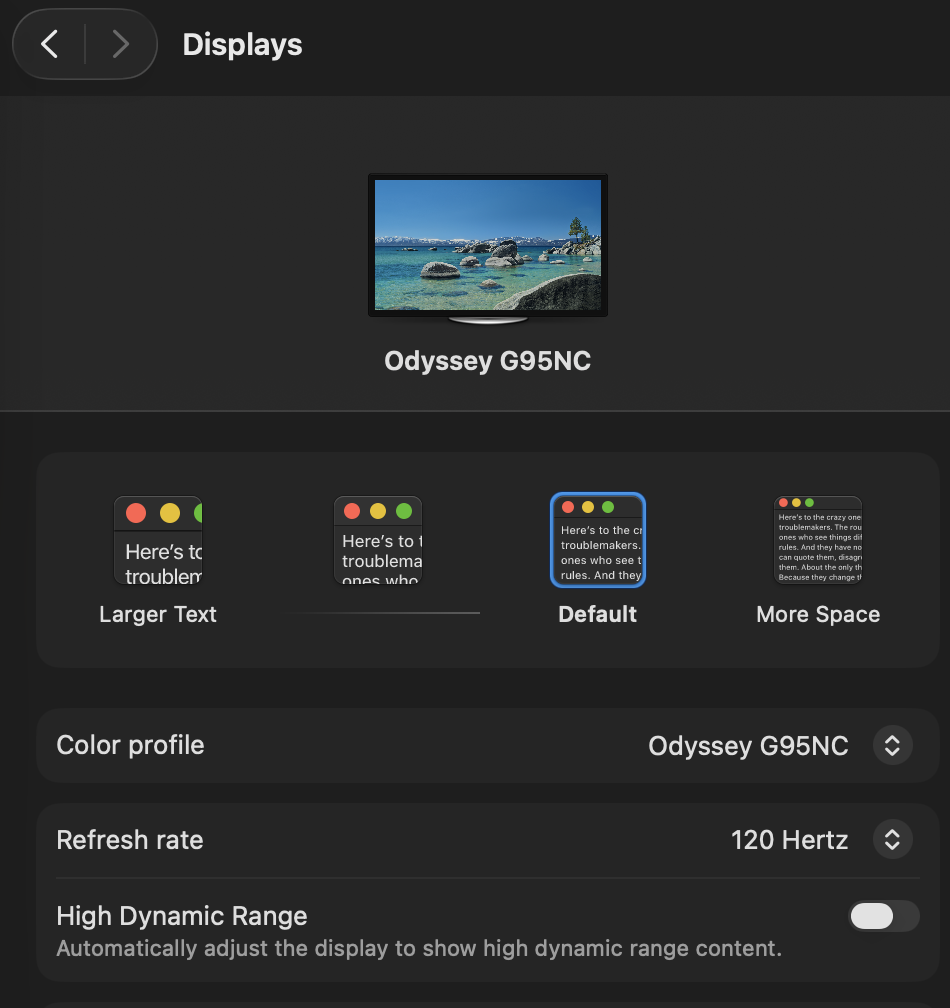
If I switched the display to 240hz settings, the MacBook Pro would actually cap it at 60hz. So if you’re not getting decent frames or things seem choppy, play with the monitor settings to see if you are able to get better results.
While the Samsung Galaxy Book Pro 5 ran it at native resolutions, the fans kicked on almost immediately and after about 5 minutes slowed down some, but never really stopped. So technically it worked but I don’t think its sustainable for daily use.
Aside from the Surface Pro 11, the rest capped out at 60hz and 5120×1440 leaving a less than optimal quality viewing experience. I thought the Surface Pro 11 with ARM would support it out of all the Windows laptops I had for testing but alas, this result was similar across all my devices in testing:
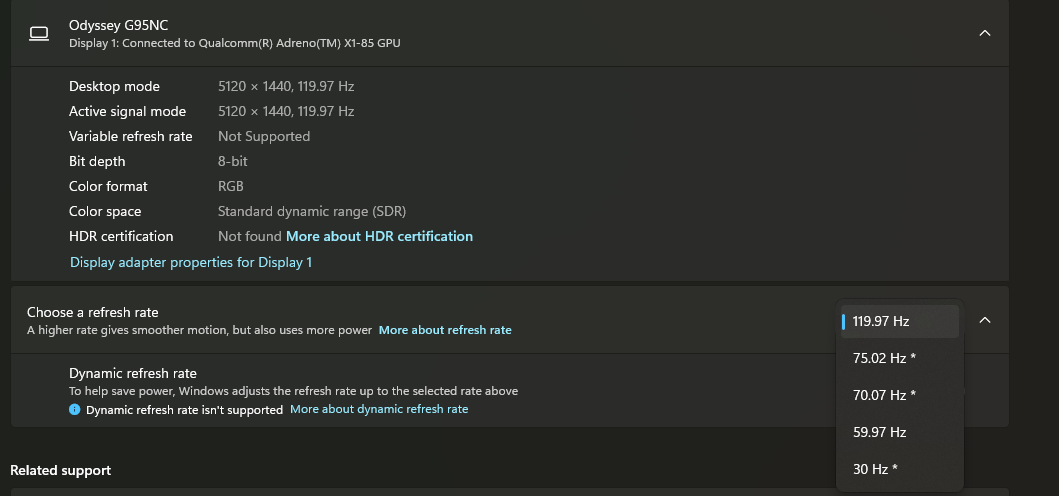
The resolution of 5120×1440 was usable however if you turned the scaling down to 125%. The 150% scaling option was comically huge and produced a softer image across the screen. All the latest drivers were installed for all my test devices to rule out a software limitation as well.
If you’re using a desktop or laptop, just be aware your mileage may vary on support for this display. I highly recommend looking into the graphic card that is included to determine if it can effectively run this display.
Software
At least this monitor hasn’t been thrashed by smart TV software like a lot of the other monitors Samsung has produced recently. There is no Tizen Smart TV, remote nonsense. Just a very simple and easy to use menu setup that is displayed when pressing the button directly behind the Samsung logo.
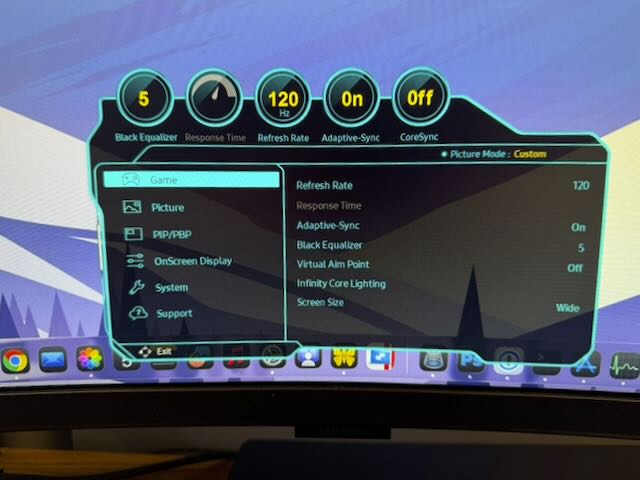
I for one have a great disdain for unneeded software on and required wireless connectivity for something like a monitor so this is a very welcome feature.
Daily Use
I’ve used so many different monitor configurations over my career but the cable messes that followed dual/triple/quad monitors made it quite frustrating. Especially if you’re a person who switches back and forth between Windows and macOS. I’ve never cared for the way DisplayLink works on macOS and so I try to avoid it completely.
All that said this monitor is the best display for productivity that I have ever used. For those of us that use Microsoft Excel on the regular, I’m able to see horizontally over to column BF and down to line 48 with no struggling or zooming. It’s crisp and clear and easy to see on macOS. Having no crease in the display makes for an optimal viewing experience that is great for long working sessions. Microsoft Word is another example where at 100% I can see a full page at a time with no difficulty. No blurriness, no muss, no fuss. Plus there’s plenty of room to have say Microsoft OneNote open on one side and a browser on the other all while being easy to read. You can do this with multiple displays obviously but it’s clean and simple with the G9.
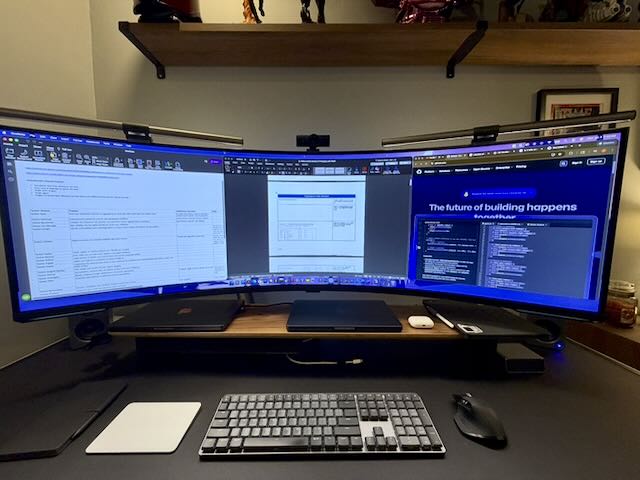
In previous versions of the G9, I’ve experienced many issues like burn in on OLED displays, cracking and popping, and just general flakiness. In the months that I’ve used this display I’ve had none of those issues.
Verdict
Overall I think this monitor is best for two categories of people:
1: Productivity
2: Gaming
Using this monitor for anyone who has productivity tasks to complete will totally benefit from this display. Especially if there’s multiple displays on your desk, the simplified cabling setup will make things so much cleaner and easier to manage.
From a gaming perspective, this display is crazy wide and while some games allow for modification of the UI to bring it closer so there’s less head turning, not all games do. So I wouldn’t recommend it for anyone who is a competitive gamer. Casual gaming, story based games, those are just fine for this as long as you have the proper hardware to push this system to its limits. Make sure you do your homework before you drop $2000 on a monitor so you know it meets your needs.
Buy this monitor if:
- You want to simplify your desk setup.
- You want the maximum amount of pixels in a single panel.
- You want one of the best productivity monitors available.
Don’t buy this monitor if:
- You plan to play competitive games on it.
- You have a desk smaller than 70’W x 25.5’D.
- You want 240Hz refresh rate but you’re using a 30x series Nvidia Graphics card.
- You don’t want to spend another $3-$400 dollars on a monitor arm to regain desk space.

 Cloud Device Guy