Well as we start the new year, Microsoft is dropping a new patch that will affect both stand alone WDS services as well as Microsoft Configuration Manager leveraging WDS instances.
The Issue? An Unattended.xml file that is lives under the hands free deployment feature of Windows Deployment Services (WDS) creates a vulnerability risk when it’s sent over an insecure RPC channel.
You can read more about the CVE direct from Microsoft here
While most companies are moving or have moved away from stand alone WDS services, those still using Microsoft Configuration Manager may be affected depending on how you configure your environments for imaging. Specifically if you use an “unattended.xml” file commonly referred to as an Answer file inside of your OSD task sequence as a package then there’s no risk to the interception but RPC is still insecure. The vulnerability allows the answer file to be intercepted over RPC if it is sent unsecured using WDS.
So what does an unattended.xml file contain? The short answer is it really depends on your environment and configuration, typically:
- Windows Setup Configuration Settings
- Computer Identity and Network Settings
- User Accounts and Passwords (DON’T DO THAT)
- OOBE Customizations
- Script paths, Branding configurations
User Accounts and passwords are the main focus of this CVE. Even IF the credentials are NOT IN the XML file, it reduces the impact of the attack, but DOES NOT mitigate the CVE or secure the RPC Channel.
Can I remove the use of the Unattend.xml file completely? Removing the use of the unattended.xml file will impact the following parts of OOBE if you’ve configured them:
- Region Selection
- Keyboard Selection
- EULA Acceptance
- Account Creation
Right now, the full change is scheduled for the April patching cycle. January lays the groundwork with some new events to let Admins identify whether or not they are secure or unsecured. This will live in the Event Logs of your servers under Event Viewer > Application and Services Logs\Microsoft\Windows\Deployment-Services-Diagnostics\Debug
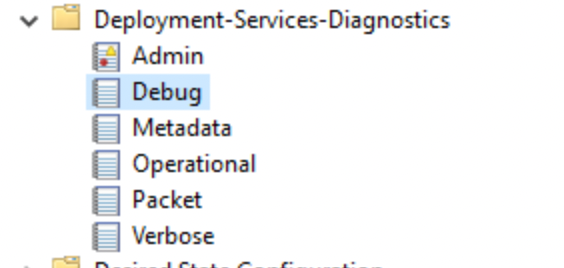
After January’s update, you should see logs there to determine the current RPC state. As of this writing there have not been any specific Event ID’s released to search for.
I came up with a quick and dirty Powershell script that will tell you if the January patch is installed based off the CVE data, whether or not the WDS service is present, checks for the registry key and its values then writes it to a log for you to evaluate. Note: Run this script at your own risk. I am not responsible for any changes that are made to your environment as a result of this script.
<# .SynopsisUse at your own risk. I am not responsible for any issues that arise from the result of running this script in your environment. Audits WDS hands-free hardening (CVE-2026-0386 context) WITHOUT any Event Log queries. - Detects OS version/build - Verifies Jan 13, 2026 KB or fixed build threshold for the OS - Checks WDS service presence - Checks hardening registry key AllowHandsFreeFunctionality - Writes report to C:\Logs\RPC detection - <timestamp>.log.PARAMETER SinceHours (Unused now; kept for compatibility. No event queries are performed.)#>[CmdletBinding()]param( [int]$SinceHours = 24)# ---- Logging ----$LogRoot = 'C:\Logs'if (-not (Test-Path -LiteralPath $LogRoot)) { New-Item -ItemType Directory -Path $LogRoot -Force | Out-Null}$Timestamp = Get-Date -Format 'yyyyMMdd_HHmmss'$LogFile = Join-Path $LogRoot ("RPC detection - {0}.log" -f $Timestamp)function Write-Log { param([Parameter(Mandatory)][string]$Message) $line = "[{0}] {1}" -f (Get-Date -Format 'yyyy-MM-dd HH:mm:ss'), $Message $line | Tee-Object -FilePath $LogFile -Append}Write-Log '===== WDS RPC / Hands-Free Hardening Audit (CVE-2026-0386, No Event Log) ====='Write-Log ("Host: {0} ; User: {1}" -f $env:COMPUTERNAME, $env:USERNAME)Write-Log ("Log file: {0}" -f $LogFile)Write-Log ''# ---- OS detection ----$cv = Get-ItemProperty 'HKLM:\SOFTWARE\Microsoft\Windows NT\CurrentVersion'$Build = [int]$cv.CurrentBuild$UBR = [int]$cv.UBR$FullBuild = "{0}.{1}" -f $Build, $UBR$ProductName = $cv.ProductName$EditionID = $cv.EditionIDWrite-Log ("Detected OS: {0} ({1}), Build: {2}" -f $ProductName, $EditionID, $FullBuild)# ---- Mapping of Jan 13, 2026 KBs / fixed builds (Microsoft Support pages) ----# Server 2025: KB5073379, build >= 26100.32230# Server v23H2: KB5073450, build >= 25398.2092# Server 2022: KB5073457, build >= 20348.4648# Server 2019: KB5073723, build >= 17763.8276# Server 2016: KB5073722, build >= 14393.8783# Server 2012 R2 (ESU): KB5073696 (Monthly Rollup)# Server 2012 (ESU): KB5073698 (Monthly Rollup)$Map = @( [PSCustomObject]@{ Name='Windows Server 2025'; Build=26100; MinUBR=32230; KB='KB5073379'; Type='LTSC' }, [PSCustomObject]@{ Name='Windows Server, version 23H2'; Build=25398; MinUBR=2092; KB='KB5073450'; Type='SAC' }, [PSCustomObject]@{ Name='Windows Server 2022'; Build=20348; MinUBR=4648; KB='KB5073457'; Type='LTSC' }, [PSCustomObject]@{ Name='Windows Server 2019'; Build=17763; MinUBR=8276; KB='KB5073723'; Type='LTSC' }, [PSCustomObject]@{ Name='Windows Server 2016'; Build=14393; MinUBR=8783; KB='KB5073722'; Type='LTSC' }, [PSCustomObject]@{ Name='Windows Server 2012 R2'; Build=9600; MinUBR=$null; KB='KB5073696'; Type='ESU' }, [PSCustomObject]@{ Name='Windows Server 2012'; Build=9200; MinUBR=$null; KB='KB5073698'; Type='ESU' })$row = $Map | Where-Object { $_.Build -eq $Build } | Select-Object -First 1if (-not $row) { $row = $Map | Where-Object { $ProductName -like ("*{0}*" -f $_.Name) } | Select-Object -First 1}if ($null -eq $row) { Write-Log 'OS version not found in mapping. Patch verification may be incomplete.'} else { Write-Log ("Expected KB: {0} ; Fixed build threshold: {1}.{2}" -f $row.KB, $row.Build, $row.MinUBR)}# ---- Check KB installed and/or build threshold met ----$KbInstalled = $false$PatchedByBuild = $false$KbNote = ''if ($row) { try { $hf = Get-HotFix -Id $row.KB -ErrorAction Stop if ($hf) { $KbInstalled = $true } } catch { $KbNote = "Get-HotFix did not return $($row.KB). (It might be superseded or not registered.)" } if ($row.MinUBR -ne $null -and $Build -eq $row.Build) { if ($UBR -ge $row.MinUBR) { $PatchedByBuild = $true } } Write-Log ("KB status: Installed={0} ; Build meets threshold={1} ; Note: {2}" -f $KbInstalled, $PatchedByBuild, $KbNote)}# ---- WDS service presence ----$Wds = Get-Service -Name 'WDSServer' -ErrorAction SilentlyContinueif ($Wds) { Write-Log ("WDS service state: {0}" -f $Wds.Status)} else { Write-Log 'WDS service not found (likely not a WDS PXE host).'}# ---- Hardening registry key ----$RegPath = 'HKLM:\SYSTEM\CurrentControlSet\Services\WdsServer\Providers\WdsImgSrv\Unattend'$RegName = 'AllowHandsFreeFunctionality'$RegState = $null$ModeText = 'Unknown'try { $val = Get-ItemProperty -Path $RegPath -Name $RegName -ErrorAction Stop $RegState = [int]$val.$RegName if ($RegState -eq 0) { $ModeText = 'SECURE (hands-free blocked)' } elseif ($RegState -eq 1) { $ModeText = 'INSECURE (hands-free allowed)' } else { $ModeText = "Unknown value: $RegState" } Write-Log ("Registry: {0}\{1} = {2} -> {3}" -f $RegPath, $RegName, $RegState, $ModeText)}catch { Write-Log ("Registry: {0}\{1} not found. (Default is secure-by-default after April 2026.)" -f $RegPath, $RegName)}# ---- Conclusion ----function Get-Conclusion { param( [bool]$KbInstalled, [bool]$PatchedByBuild, $Row, $Wds, $RegState ) $patchStatus = if ($Row) { if ($KbInstalled -or $PatchedByBuild) { "PATCHED for $($Row.Name) (KB: $($Row.KB); BuildThresholdMet: $PatchedByBuild)" } else { "NOT PATCHED for $($Row.Name) (KB $($Row.KB) missing; build below fixed threshold)" } } else { 'Unknown patch status (OS mapping not found)' } $wdsStatus = if ($Wds) { "WDS $($Wds.Status)" } else { 'WDS not installed' } $hardening = if ($RegState -eq 0) { 'SECURE mode (hands-free blocked)' } elseif ($RegState -eq 1) { 'INSECURE mode (hands-free allowed)' } else { 'Registry key missing/unknown (default secure-by-default after April 2026)' } "CONCLUSION: $patchStatus | $wdsStatus | Hardening: $hardening"}$Summary = Get-Conclusion -KbInstalled:$KbInstalled -PatchedByBuild:$PatchedByBuild -Row:$row -Wds:$Wds -RegState:$RegStateWrite-Log ''Write-Log $SummaryWrite-Log '================================================================'Write-Output $SummaryYour log output should look something like this:

The CONCLUSION section will tell you what the current posture of the server is in question so you can plan for remediation.
Remediation
The remediation summary for the CVE can be summarized as:
1: Check for the type of communication your SCCM environment is using for PXE on each DP and check the method in which you deliver your unattended.xml answer file during OSD/Imaging.
2: Run the script to check for the specific patch for your server OS.
3: Determine how your remediation path.
Checklist Summary
Before you get into the details, here’s a quick checklist of what to do for this vulnerability in a little more detail:
Immediate:
- Install the correct Jan 13, 2026 KB for your Windows Server version.
- Confirm server OS build meets or exceeds Microsoft’s fixed builds.
- Disable hands‑free WDS via registry (AllowHandsFreeFunctionality=0).
- Audit WDS to confirm no remaining Unattend.xml dependencies.
Before April 2026:
- Remove remaining hands‑free WDS reliance.
- Decommission WDS role if no longer needed.
- Fully migrate to secure deployment methods.
Part 1 – Apply the Security Update and Identify your RPC Posture
This one is pretty straight forward. Check your posture first to determine where your next steps, then install the security update linked in the CVE.
Part 2 – Review any use of Unattended.xml in WDS/SCCM Deployments
Review your WDS/SCCM deployments for the use of the Unattended.xml files in your deployments. This is located in your Task Sequence under the “Apply Operating System” step normally. Your naming convention may vary but the function is where it’s at. The Screenshot is a sample of where to find it in your Task Sequence if you were creating a new one.
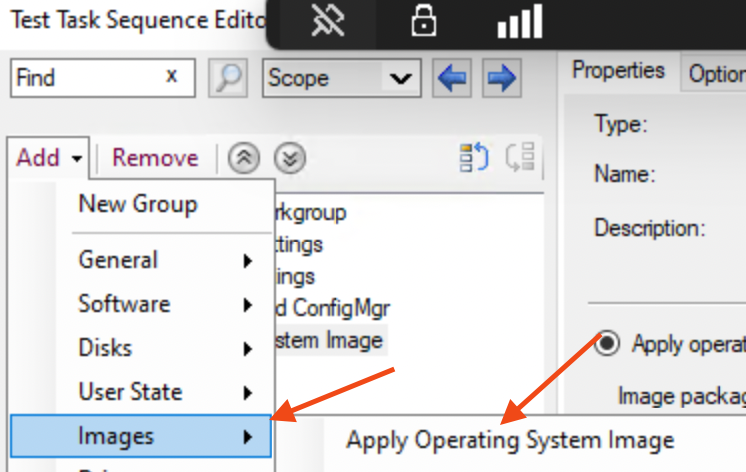
If it’s contained in a package that is used during the OSD process, the RPC Channel vulnerability does not expose the unattend.xml file so the file is still secure. If you’re leveraging SCCM, it downloads the content via content location requests > DP Communication > Stores it locally during WinPE, and injects the Unattend.xml file into X:\_SMSTaskSequence\Unattend.xml
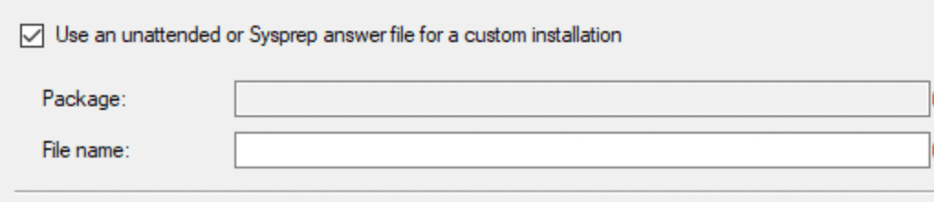
Otherwise, determine what you’re doing in the file and various ways to re-engineer/eliminate the use of the answer file. It is possible to run a script to accomplish the same configuration if you want to go that route but that is outside the scope of this article.
Part 3 – Create and Set the Registry Key (MS Recommendation)
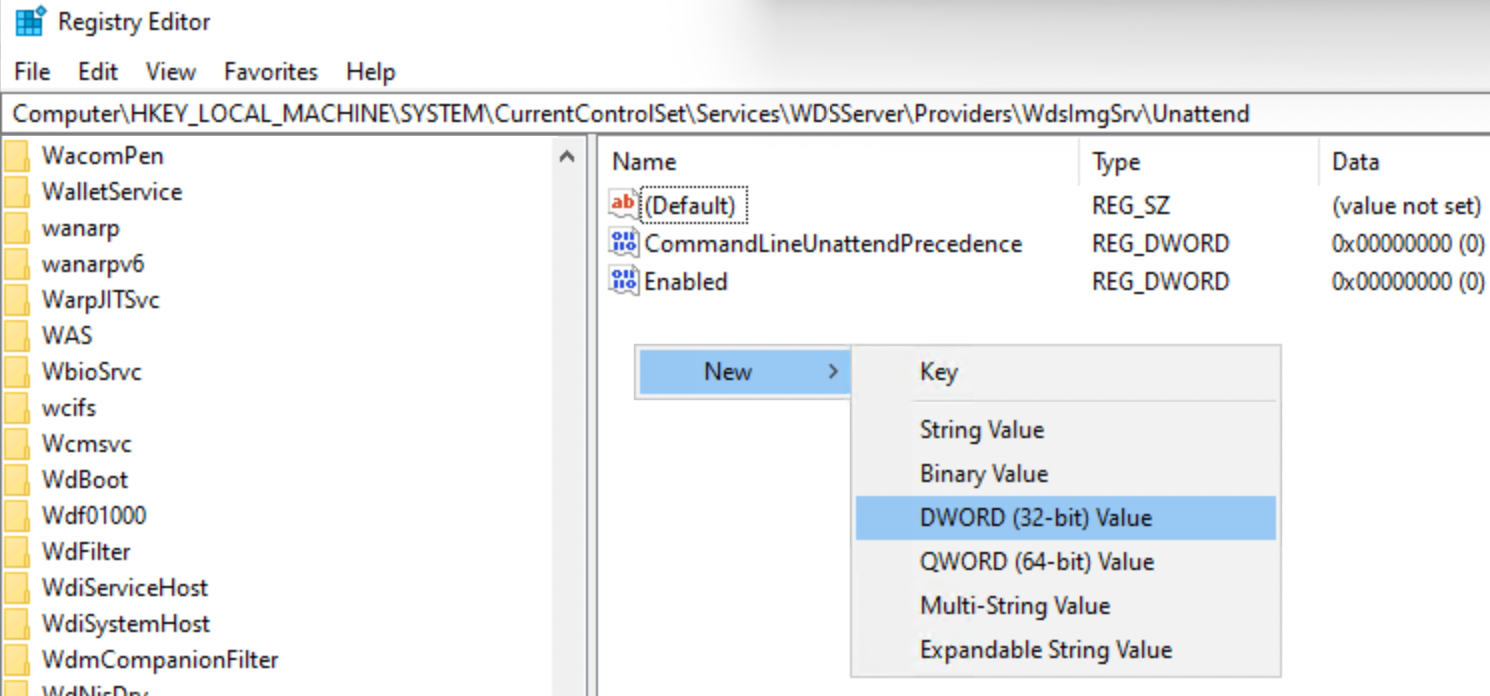
Once you are aware of your environment’s behavior, if you don’t have the DWORD VALUE needed, you can create it here: ComputerHKEY_LOCAL_MACHINE\SYSTEM\Current\ControlSet\Services\WDSServer\Providers\WdsImgSrv\Unattend
Right Click > Choose New > DWORD
Change the value name to: AllowHandsFreeFunctionality and the value data can be either a 0 or 1
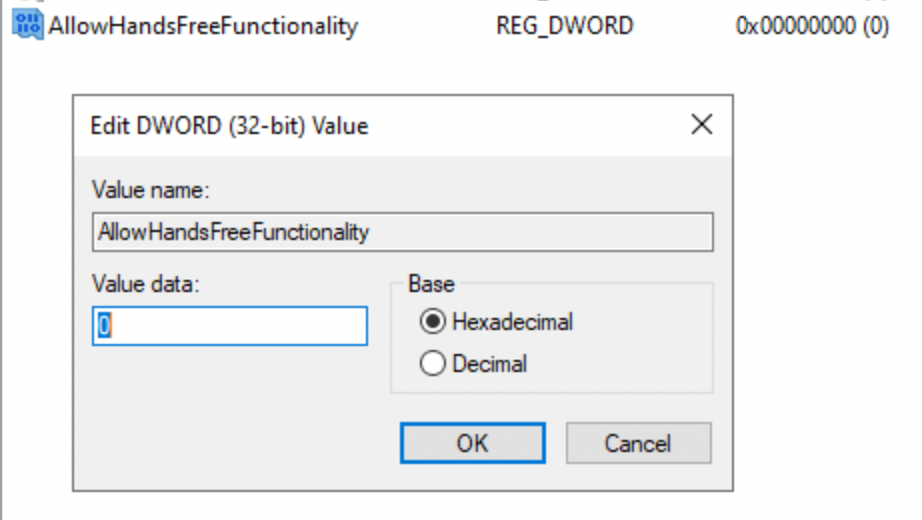
- Value 0 = Disable Hands Free (Secure Mode)
- Value 1 = Allow insecure hands-free mode (Not Recommended)
If after April, 2026 the key is still missing, the default value will equal 0 and hand free deployment will be blocked by Default.
Otherwise set the value to 1 to continue operations until April.
Part 4 – Optionally Remove WDS and Use PXE Responder
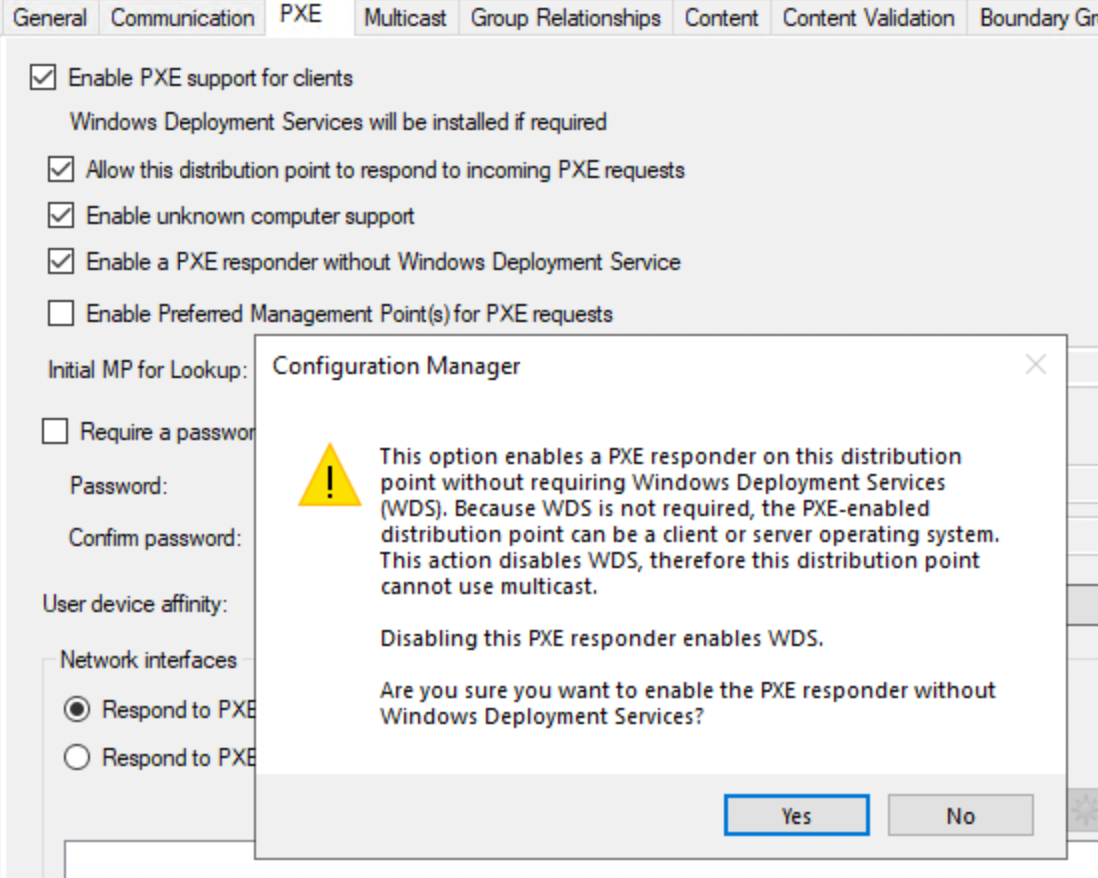
Within SCCM, you may want to consider changing to PXE Responder instead of WDS. Under Administration > Distribution Points, you can enable a PXE Responder without WDS. When you do this bear in mind that if Multicast is needed, this option will not fly. Otherwise when you enable it, the PXE functionality will work without WDS however, it may require some additional work in order for that to behave. Test it first to see if that works in your environment but if its delivered via a package, then exposing the file doesn’t happen and thus is not required.
Part 5 – Decide the Long Term Strategy
If you read the KB, it recommends moving to alternative deployment options for your business especially if its stand alone. Your options you ultimately select depend on what your strategy is for deployment of workstations long term. The obvious alternatives:
- Configuration Manager with PXE Responder (no WDS)
- NO WDS
- Windows Autopilot (Choose Your Join Adventure. Hybrid, Cloud, Device Prep etc.)
- If you have SCCM but are leveraging a legacy stand alone imaging process with WDS, move it to the SCCM platform
Part 6 – Allow Unsecure RPC in your Environment (NOT RECOMMENDED)
This measure is a stop gap at best. If you’re going to head this route, follow Part 3 and set the value to 1, then place your WDS servers in an isolated VLAN, Limit the Access, restrict the RPC and PXE exposure to deployment subnets and level some sort of IPsec or switch-level Access Control List to further control it.
Wrap Up
Overall, the remediation can be simple with a lot of risk, or more severe depending on your business’ appetite for change. Make sure you test after you change the registry key to confirm you do not accidentally impact SCCM in some unknown way. One thing’s for sure though, there’s no shortage of security work that admins need to do these days. As always, work with your Security team and other leaders in your org to determine which path is right for you.

 Cloud Device Guy