With another month and another warning for the latest Microsoft update (KB5074109) affecting consumer and enterprise systems, let’s talk about how you can handle this for personal/consumer versions. If you’re looking for the enterprise blog, click here. On 01/17/2026, Microsoft did release an Out of Band patch for Windows 11 (Build 26100.7627 or 26200.7627). You can read the main points from the official Microsoft site, but if you’re still on the versions affected below, lets talk remediation.
Versions Affected:
- Windows 11 24H2 (Build 26100.7623)
- Windows 11 25H2 (Build 26100.7623)
Please note: Microsoft is actively removing this update if it checks for new updates as of 01/24/2026. It’s possible this may automatically resolve for you without intervention. The instructions below can be used for future updates as well. Just be sure to check for the update number.
Consumer Version
On the consumer side, there are a few different ways you can solve this issue depending on the state of Windows. Hopefully your data is neatly stored in OneDrive or another cloud provider so that, if you are forced to restore your data is safe. If you can get into the system, backup your data to a local USB or external drive if it’s not stored in some sort of cloud.
Prerequisites
If you can login to Windows, the easiest way to find out if you’re affected is to check your Windows version. To do this, go to Start > type “winver” without the “” and press enter. You will get a pop up that shows the version:
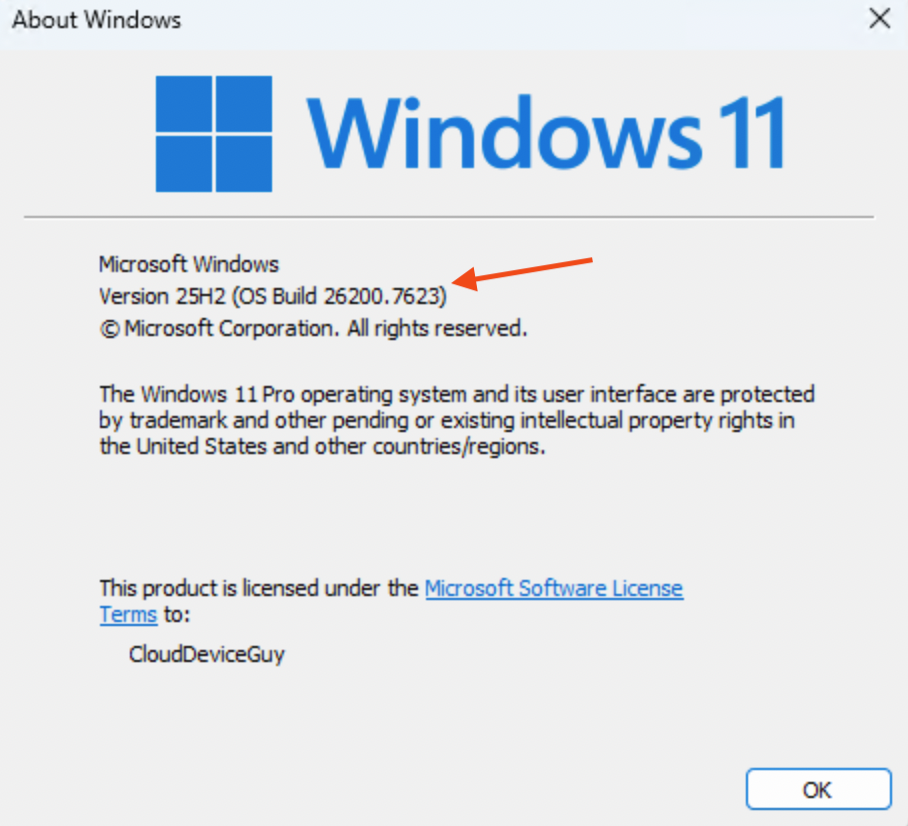
As you can see, this system is affected since the version matches.
Path 1: In Windows
If you are able to login, go to Start > Settings > Windows Update > Update History > and click Uninstall updates
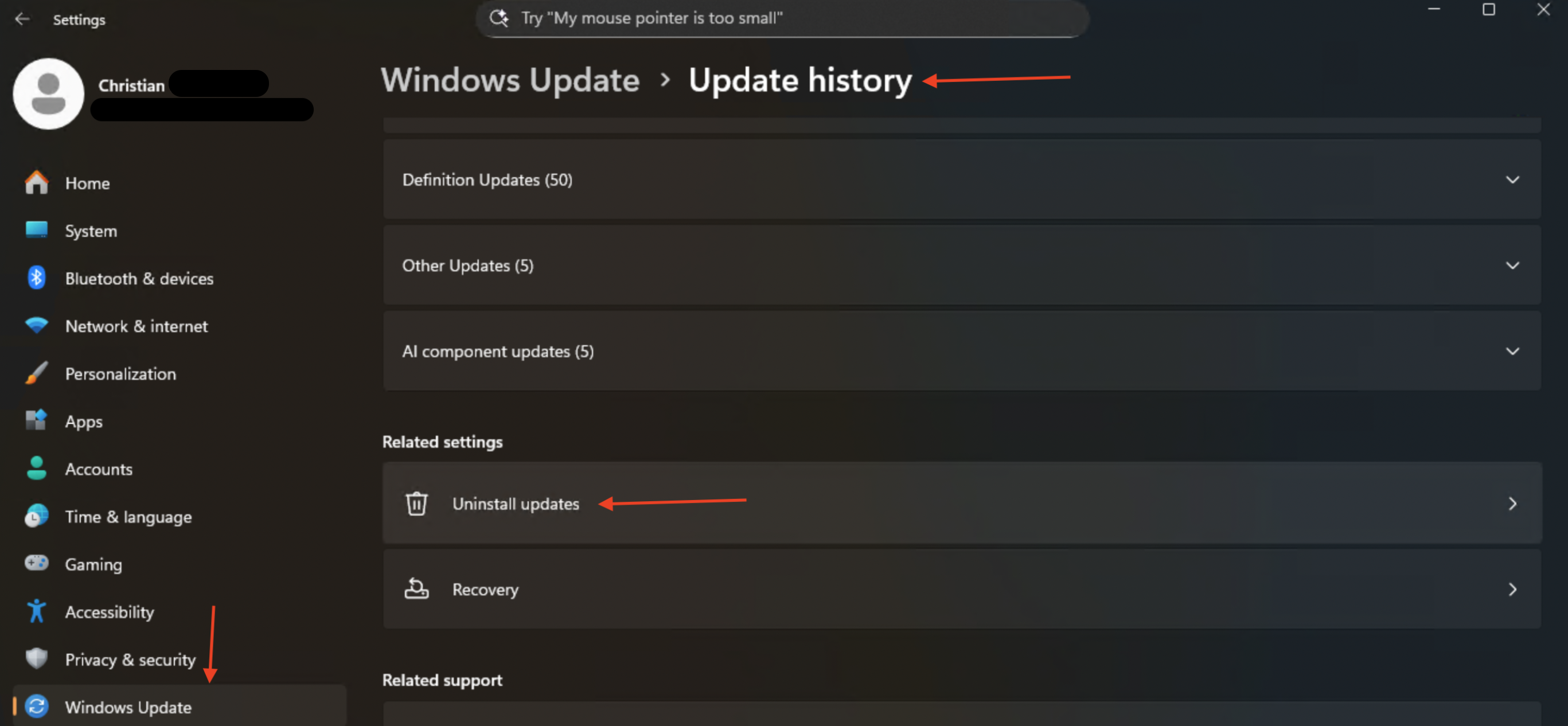
Find the update you wish to remove, and click > Uninstall

Restart the system. The update should be removed. Once back into Windows go to Settings > Windows Updates > Check for Updates

Depending on your state, the update may already show. Click Download and Install if it isn’t already happening.
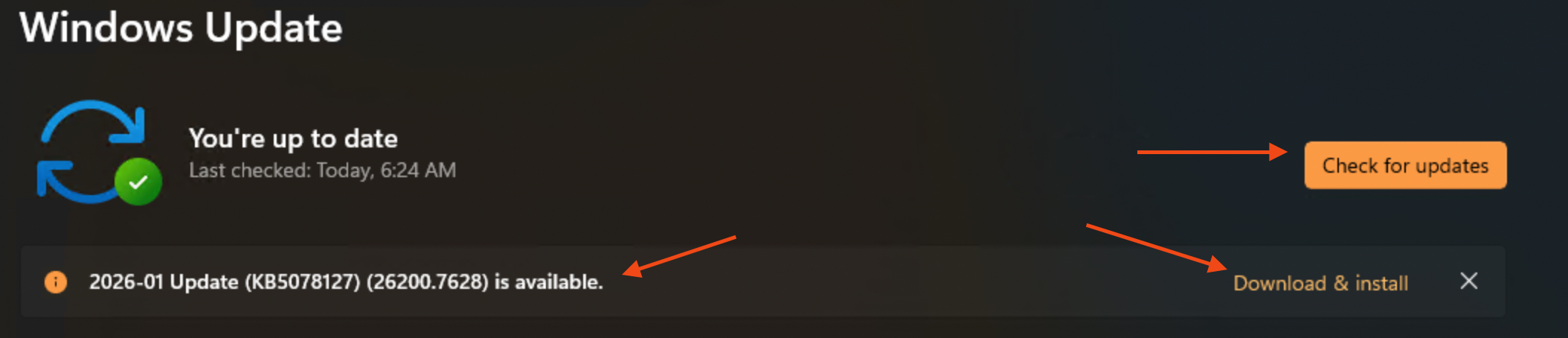
Once complete, reboot. You are successfully patched.
Path 2: Recovery
If you’re unable to boot your system and you end up in Recovery, you have the option to uninstall the latest Quality Update. Once in Recovery, go to Troubleshoot > Advanced Options > Uninstall Updates
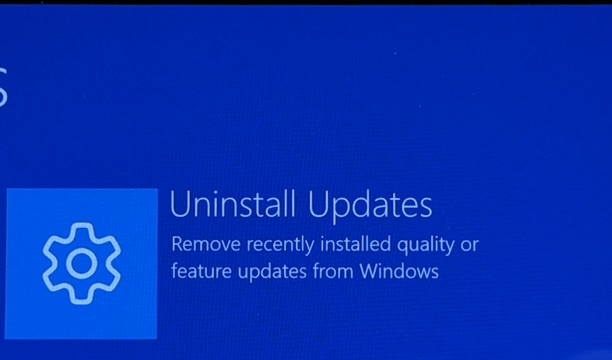
Then choose Uninstall latest Quality Update
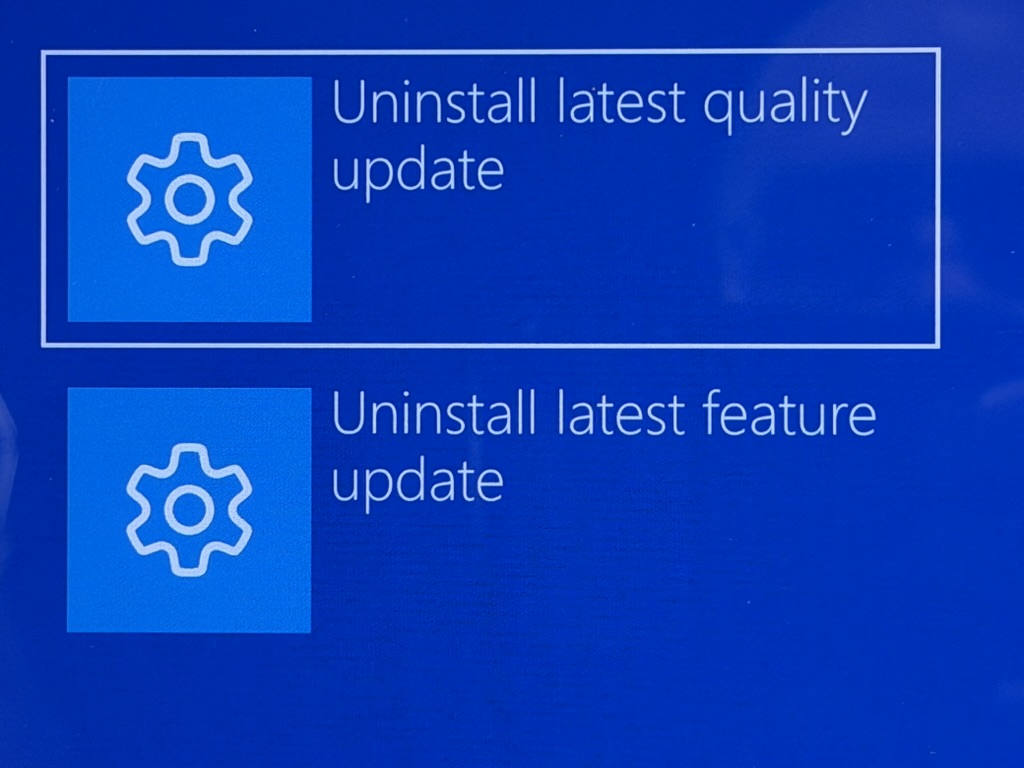
Then your system will restart.
Once restarted, the system should be all set.
Path 3: Reset the PC
If you still can’t get unstuck, your last option is to Reset this PC. Once you’re into the Recovery page, Click Troubleshoot
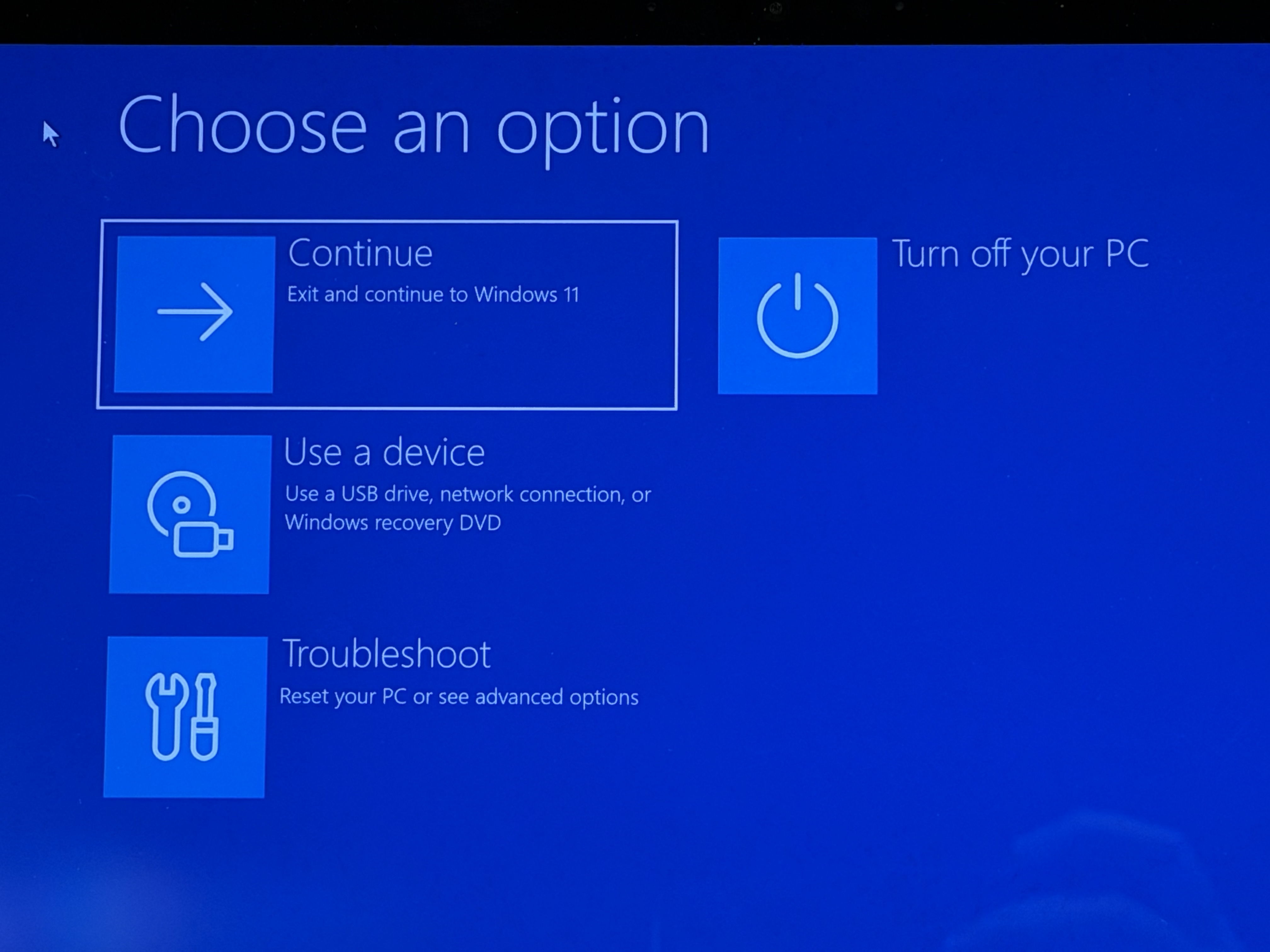
Then click on Reset this PC
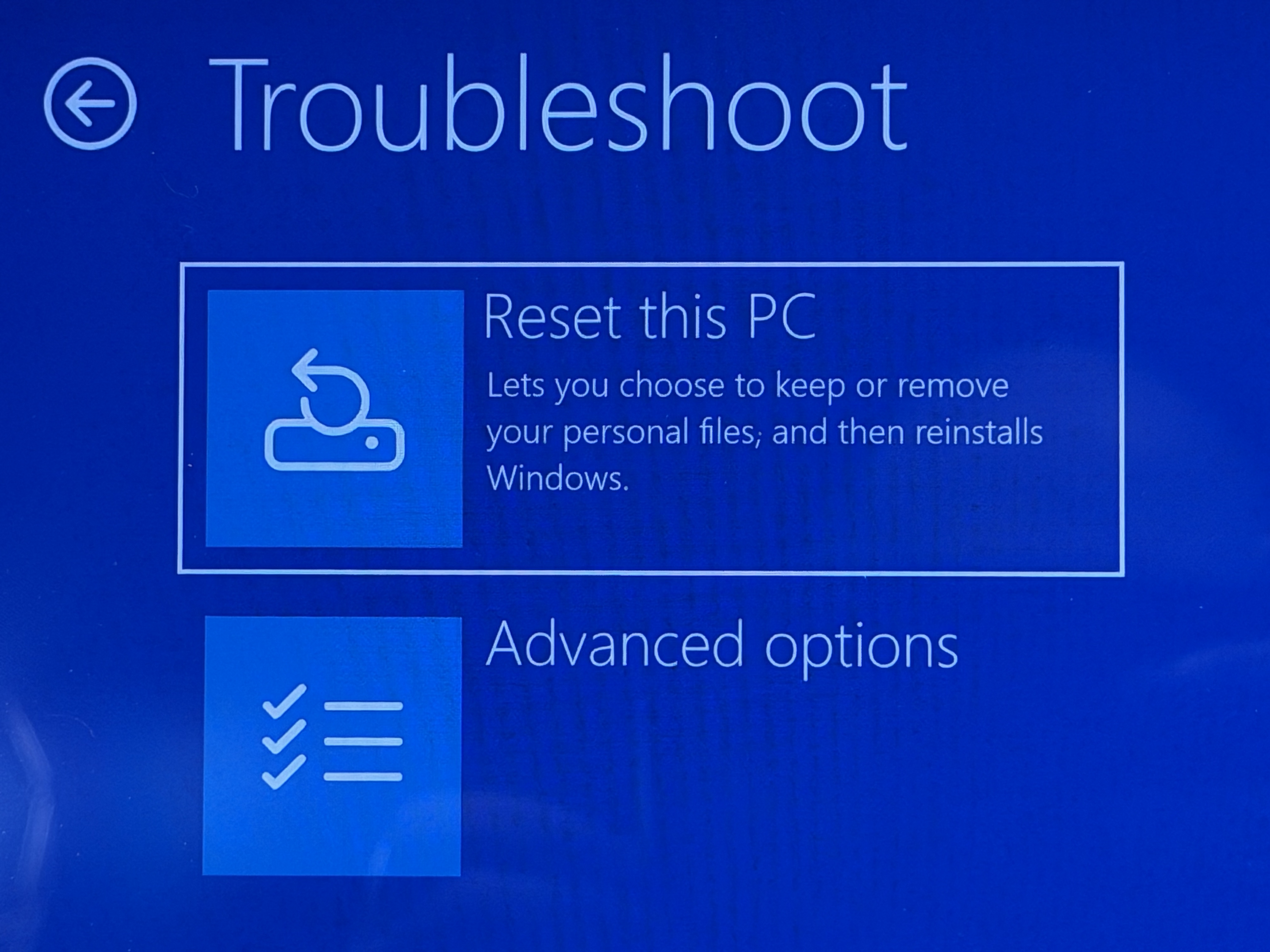
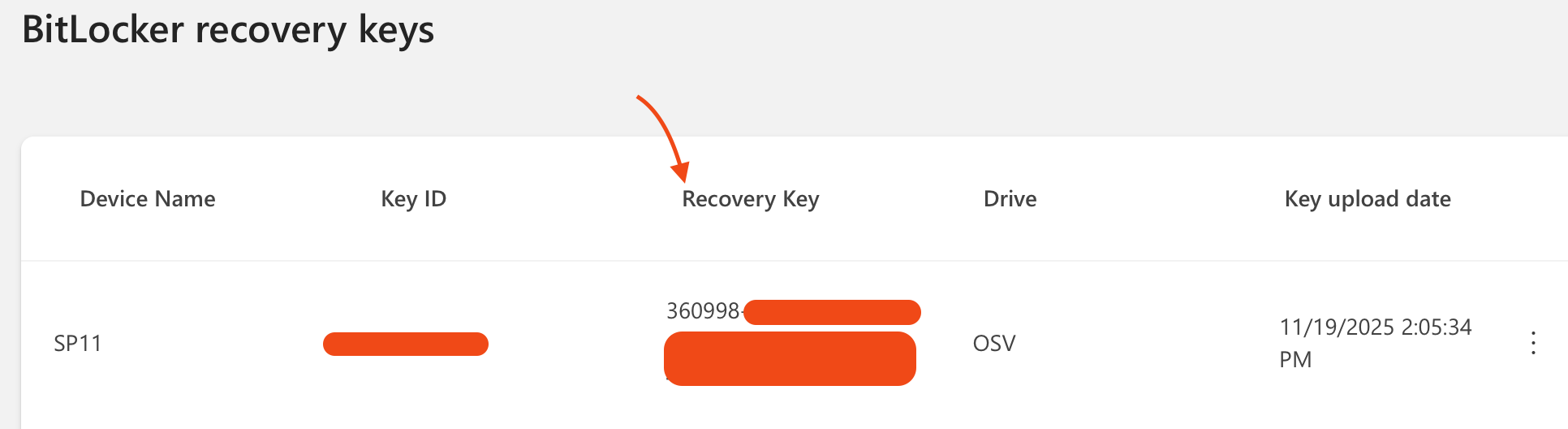
You may be prompted to enter your Bitlocker key. If you have this enter it. If not, see below. For personal use, this is located in your Microsoft account. On working device (Phone, tablet, or PC) go to https://www.microsoft.com/
Next, click Sign In

Once signed in, Click your Name > then click “My Microsoft Account”.
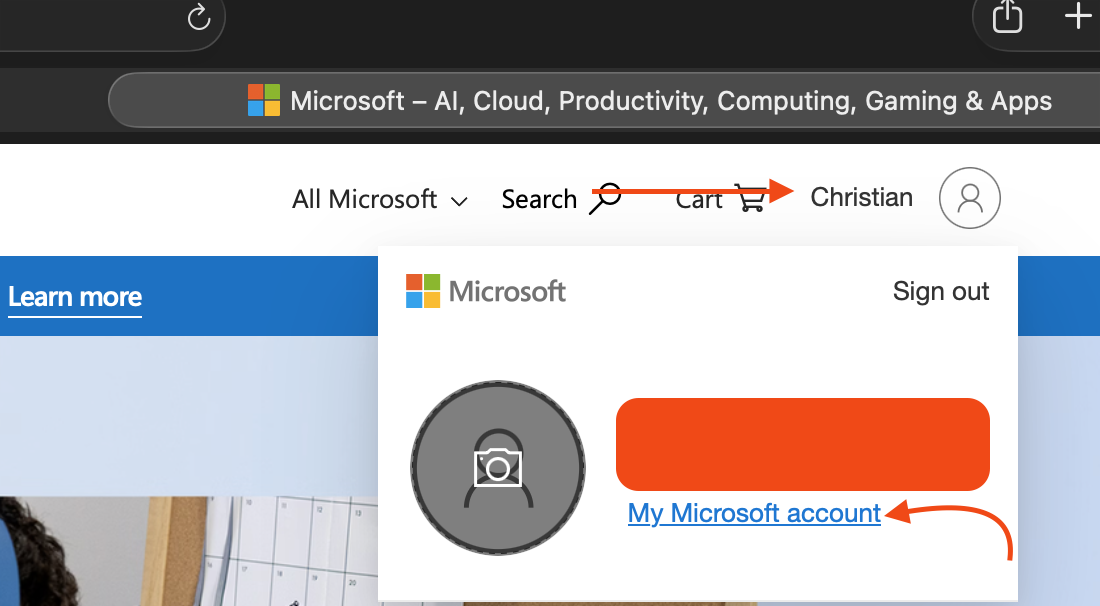
Under your name on the left side of the page, click on Devices .
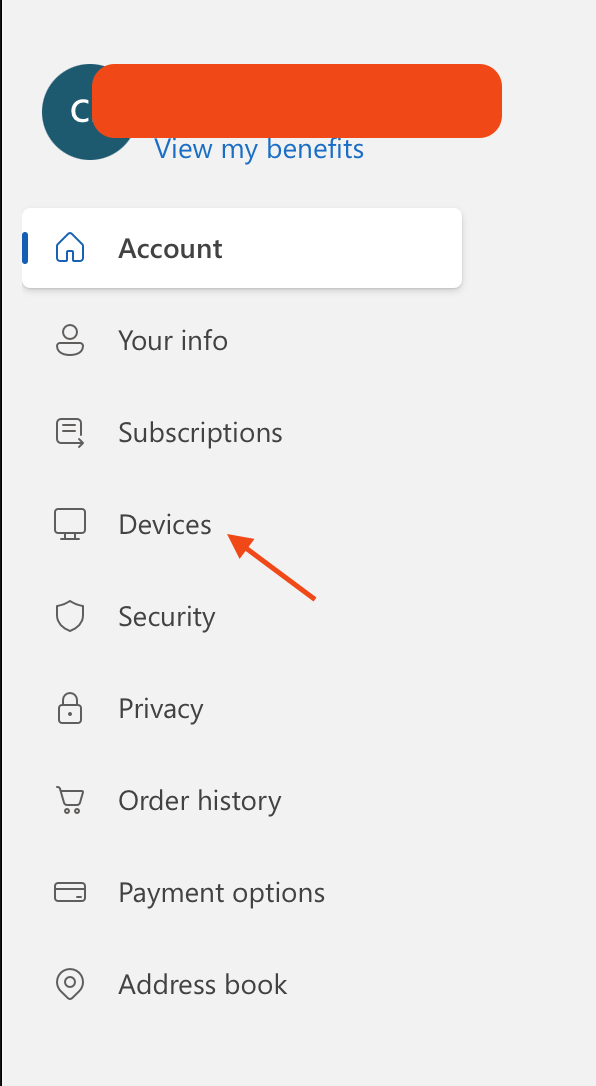
Scroll down to the device you own. Keep in mind this device in the screenshot will may look different with a different name than the one in the screenshot. Click See Details.
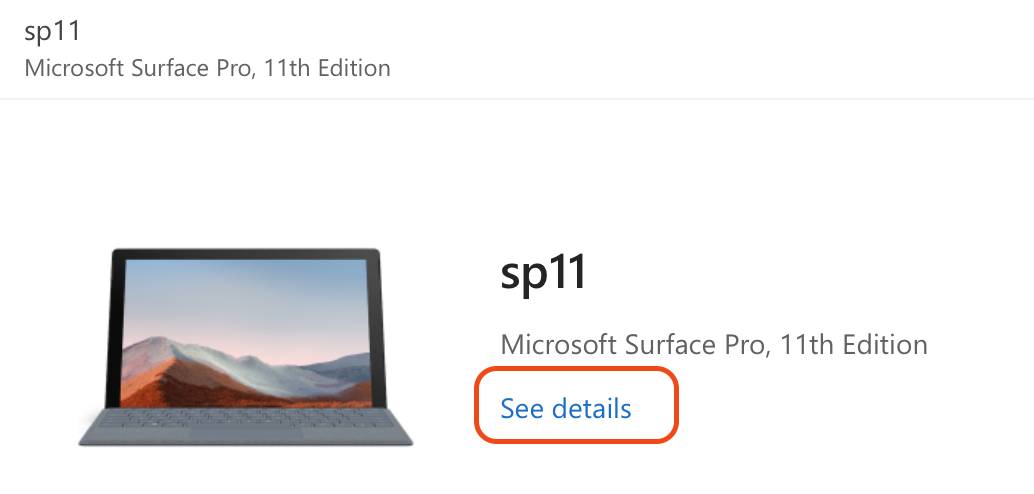
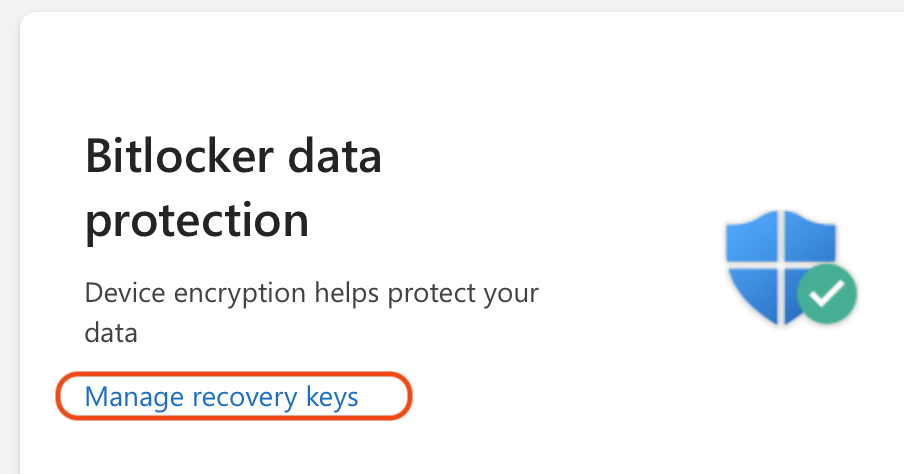
Scroll down to the bottom of the page until you see “Bitlocker data protection” and click “Manage Recovery Keys”
Identify your device and note the “Recovery Key”
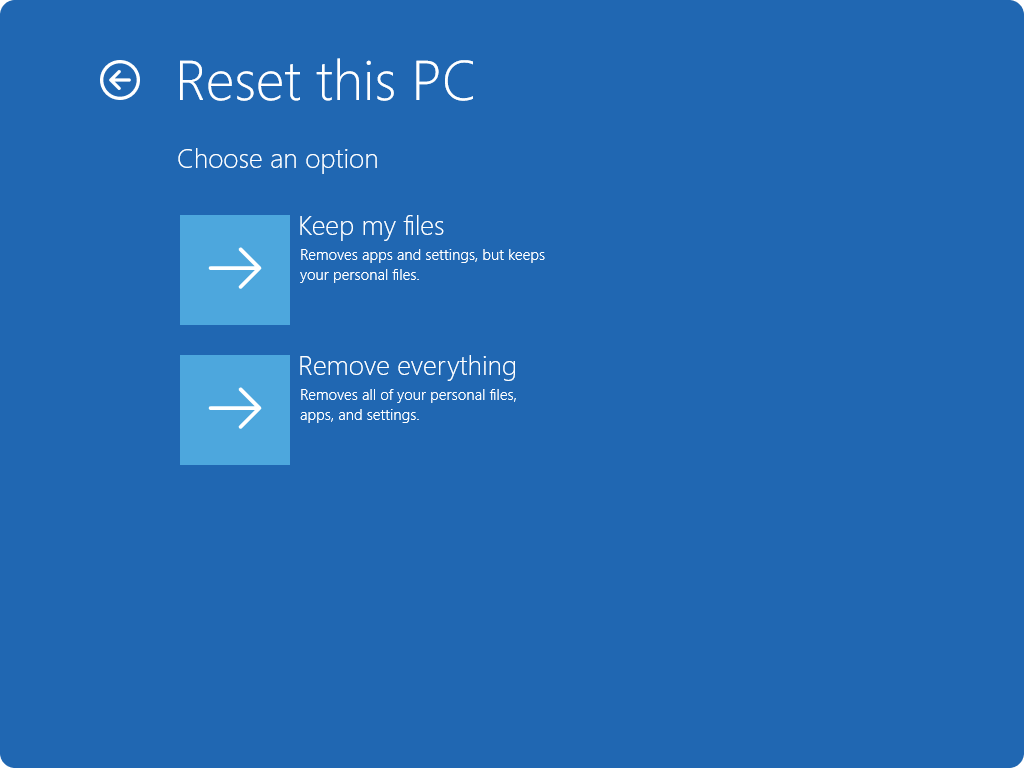
Once the Bitlocker key is entered, you may be prompted to choose what you want Windows to do regarding the reset. Choose the option you want and click on it. Note that Remove Everything means EVERYTHING. So if you’re worried about files saved locally that don’t exist in a place like Microsoft OneDrive, then Keep your Files.
This will require you to setup this PC again. Once completed, you will need to install or restore your apps, data, and setup the device as if it were new.
Wrap Up
Overall Windows Updates have been pretty rough on consumers and enterprises alike lately. Hopefully this guide will help those who are running into the issue solve it.