Note: if you’re an enterprise, the Surface App can be deployed in a myriad of different ways to your enterprise devices. This is coming soon..
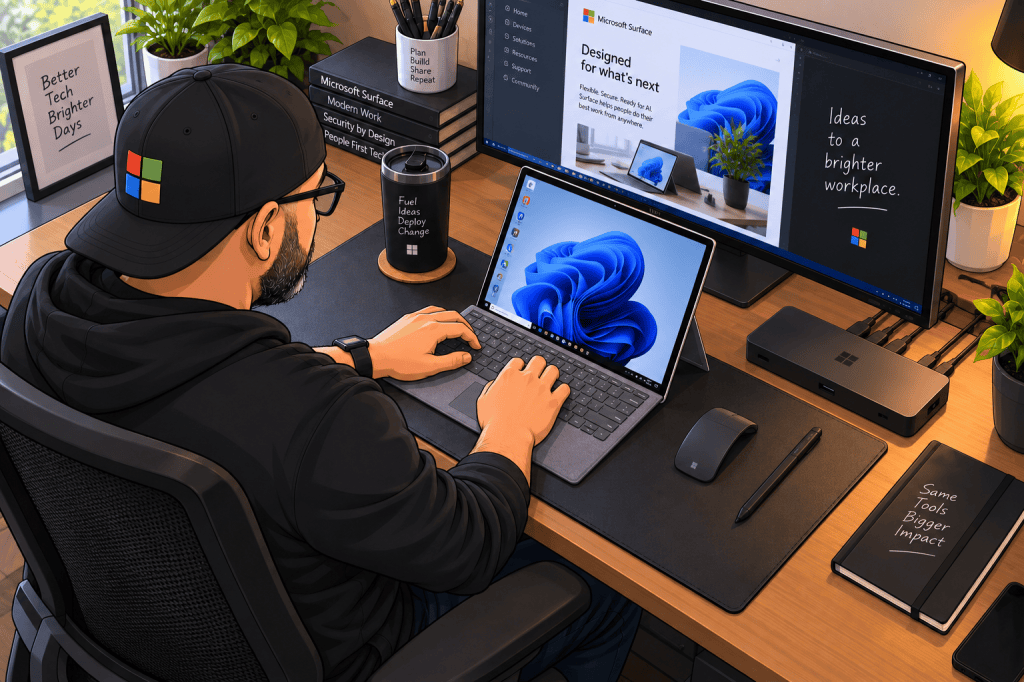
I’m obsessed with the Surface, I always have been. Part of what makes the Microsoft Surface wonderful, is the Surface App. This is not to be confused with the Surface App for iOS or Android. This app comes preinstalled on every Surface to help Surface owners get the most information about their Surface products. Whether that is the laptop itself or Surface accessories like the Flex keyboard or the Surface Slim Pen 2.
Let’s dive into this app and see what it does.
Main Page
On the main page, it provides a picture of the Surface you’re using, the main category on the right lists 7 different areas that provide more intel into the Surface product, and at the bottom and probably my favorite view is a list of all the connected Surface products and their battery life.
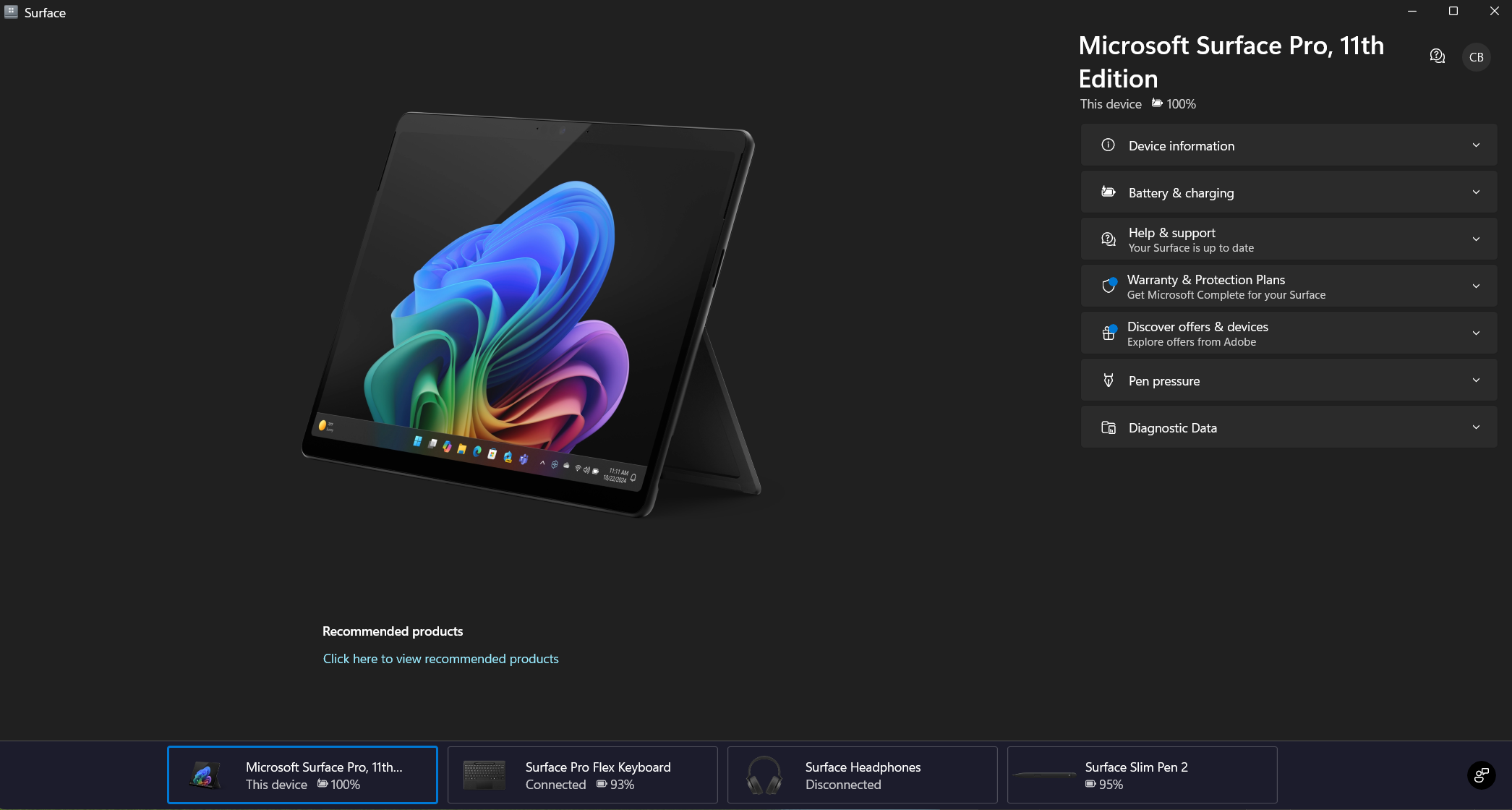
What’s even better, is that you can click on each of Surface products connected to your Surface app, and see additional settings for each of those accessories.

This is by far my favorite thing. Having the information about your Surface Laptop or tablet is one thing, but being able to see your complimentary Surface accessories, update their firmware and serial information is just fantastic. For example, the Surface Slim Pen 2 shows firmware, software, setup, support and additional settings. The same goes for all accessories that connect to a Microsoft Surface.
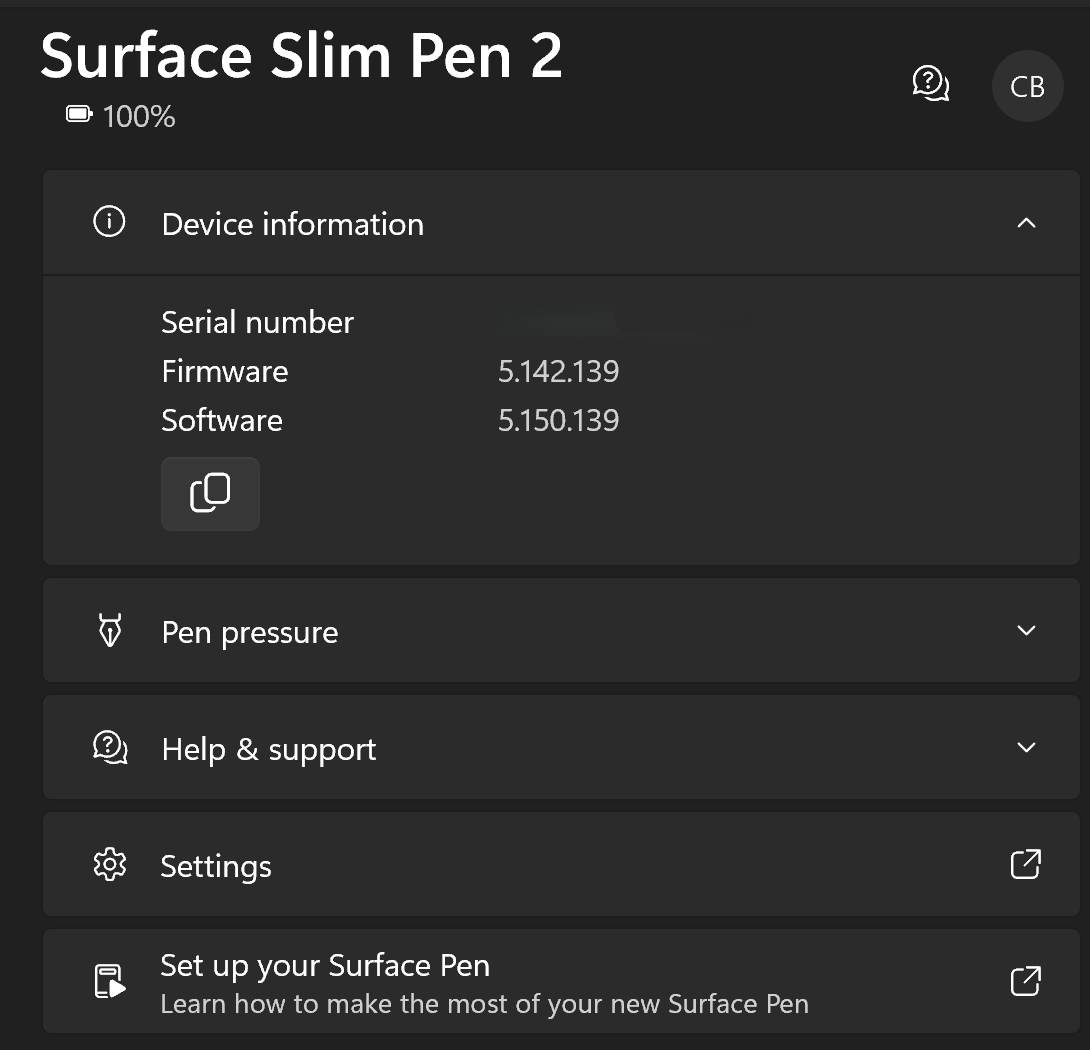
It will vary depending on the device, for example the Surface keyboard I use at the desk can remap keys and do a few other things while the Pen menu specifically brings in Pen pressure and a setup shortcut to setup and configure the Pen.
The more accessories you add, the more accessories that show through no additional work of your own. They automatically populate. This doesn’t mean in any way that you can only buy accessories made by Microsoft for your Surface, it just means that your management of these devices might be a little bit simpler to handle through the convenience of the Surface app instead of having multiple applications managed by multiple developers.
Device Information
Device information really provides some great information for the Surface Pro. Things like the name of the device, BIOS versions, Surface model, and the App version. “View More” provides more information that’s helpful such as driver versions for key hardware, processor, memory, screen resolution and free storage.

Most IT pro’s know of multiple ways to get this information, but for users and consumers, this provides a way to gather information easily.
Battery and Charging
For years people knew to go to areas like the Control Panel or Settings to make changes to their Windows computer for things like Power Options. Those still exist today and are still needed depending on what a person needs to change a setting, but the battery and charger section allows you to adjust something that has been around for awhile but most people don’t pay attention to and that’s your “Charging Mode”. There are 3 modes you can choose from depending on your need:
- Adaptive
- Limit to 80%
- Charge to 100%
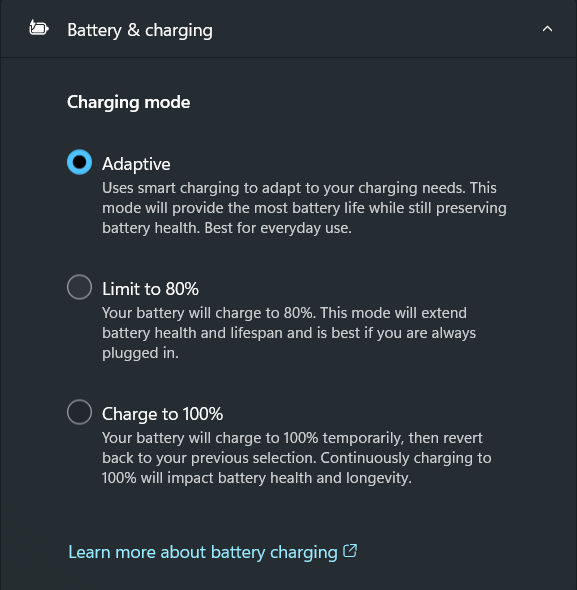
Adaptive is the default setting. This setting uses Machine Learning to identify your specific patterns of usage and determine the best battery health.
Limit to 80% only allows the Surface to charge to 80% and then stop. This is great for extending battery life especially if your Surface remains on a charger quite often.
Charge to 100% on the other hand is what I would refer to as “Charging Classic Mode” Always to 100%. No matter what. This tends to shorten battery life over longer periods of ownership by degrading the lithium ion cells in your built in battery.
If you want more control and your laptop spends most of its time on a charger or docked for work/personal, then I’d use Limit to 80%. When you know you’re heading out for a day, you can choose Charge to 100% to top off, and once that happens, your laptop will go back to your previous selection.
I personally leave mine on Adaptive because it’s one less thing I have to think about during the day and let the device figure it out for me. The choice on which setting to use is up to you.
Help and Support
Warranty and Protection Plans
This section is self explanatory. It lays out the warranty coverage of your Surface device for you and offers you additional protection through Microsoft Complete. You can gather more information on Surface Complete from Microsoft for personal and business here: https://www.microsoft.com/en-us/store/b/microsoft-complete#tab-for-personal-and-family
Discover Offers and Devices
I won’t say much about this tab other than I wish it did not exist. This also goes with the little Recommended products ad underneath the Surface. Advertisements or perceived ads within the Windows Operating system is something that the community has asked time and time again to get rid of and while Microsoft has acknowledged it, it’s not going away quickly enough for anyone. There’s one place in my opinion that ads should never be. That’s built into the OS. Hopefully Microsoft continues to see and address the community feedback on this particular topic and decides that it should cede this desire. I think it hurts them way more than it helps them.
Pen Pressure
Pen pressure is a great way to adjust the way the Surface Pro and pen interact. This helps you adjust pen pressure with your Slim Pen 2.
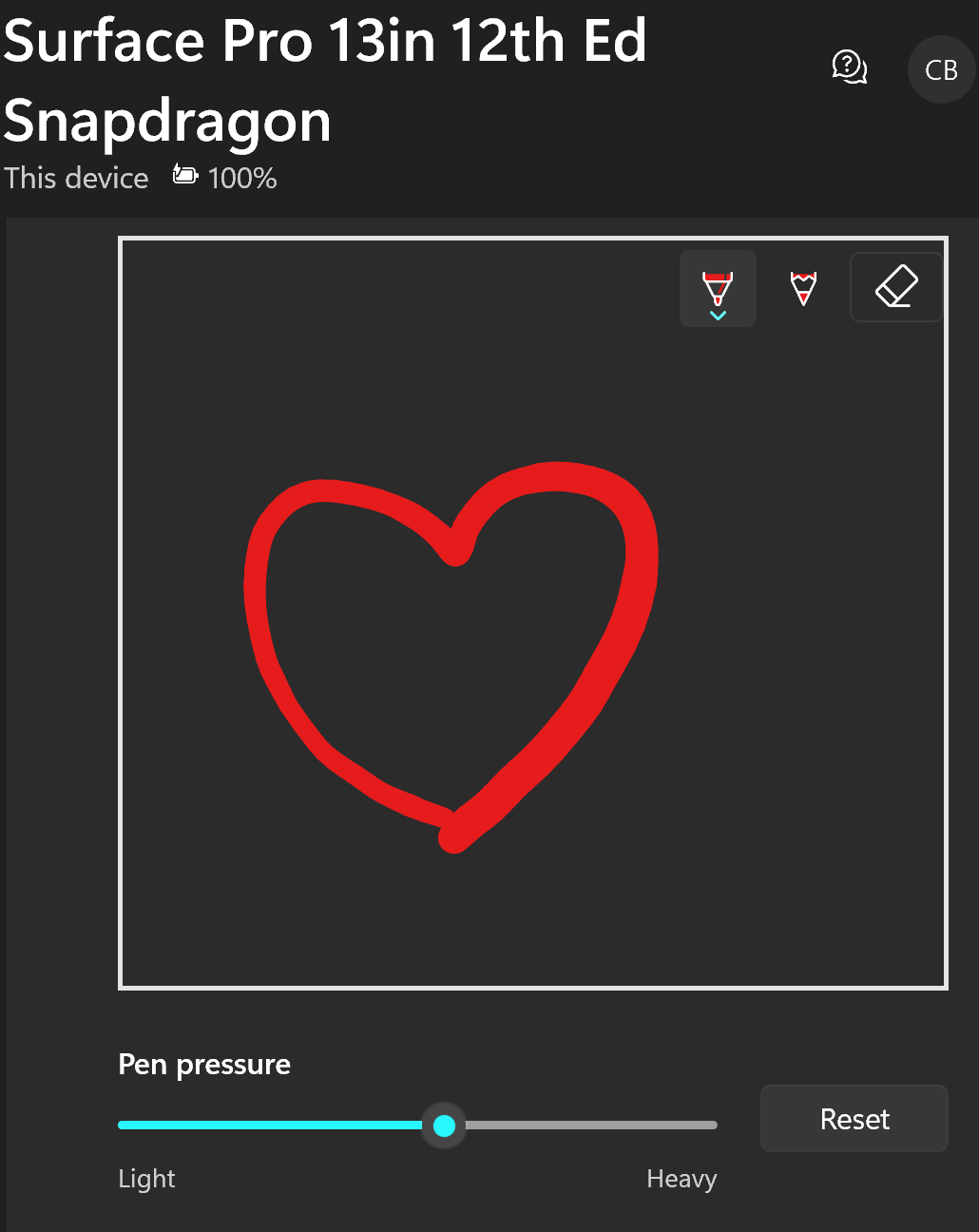
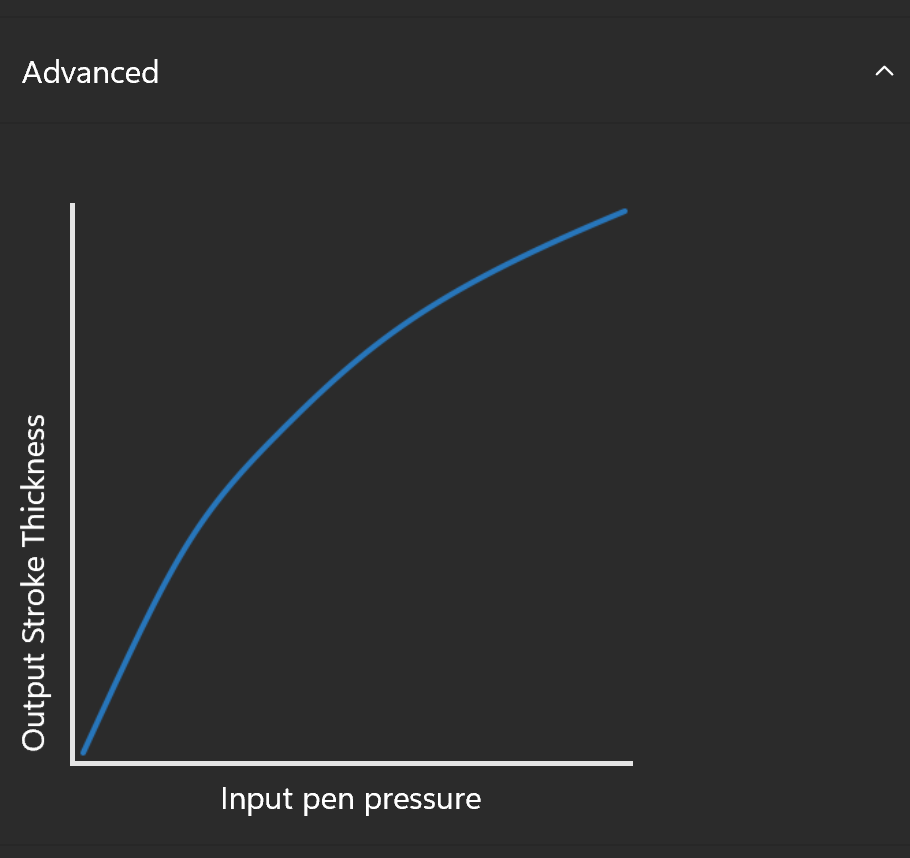
Underneath, there’s an “Advanced” window that shows you the curve of the pen when you adjust the slider to account for “Output Stroke Thickness” based on the input pen pressure or how hard you’re pressing on the pen onscreen. There are other ways to configure your Surface Pen but we will cover that in a separate write up.
Diagnostic Data
The diagnostic data page simply shows the same information you find in Settings under Privacy & Security > Diagnostics and feedback. This is really to help Microsoft take the data gathered from your device and allow them to improve it. if you don’t want this to happen, you can click the slider to turn Diagnostics feedback off.
Wrapping it Up
Thats the basics of the Microsoft Surface App included in every Surface PC today. Stay tuned for more Surface focused content as we continue to explore the Microsoft Surface products in depth including deploying them and managing them at scale using Microsoft Intune.